


Views: 0 Author: Site Editor Publish Time: 2025-08-07 Origin: Site


Have you ever looked at your desk and wished for more space or a cleaner look? I know I have. A creative monitor setup can totally change the way you use your workspace. I love how a well-thought-out monitor mount not only helps me organize my desk but also boosts my comfort throughout the day. Recent studies show that ergonomic setups with smart features, like posture checks and blue light filters, make a huge difference for both work and gaming.
Adjustable monitor stands keep my monitor at the perfect height, so I avoid neck and back pain.
Clutter-free desk setups help me focus and feel less stressed.
Creative workspace tweaks, like vertical stacking or wall mounts, open up new ways to use my desk.
Whenever I work or play, a smart monitor setup helps me stay productive and comfortable. As you read, think about what challenges you face with your own workspace and how a creative setup could help.
Adjustable monitor mounts improve comfort by keeping screens at eye level and reducing neck and back strain.
Using monitor mounts frees up desk space, making your workspace cleaner and more organized.
Dual monitor setups boost productivity by allowing easy multitasking and better screen arrangement.
Good cable management keeps your desk tidy and helps you focus without distractions.
Creative setups like vertical stacking or wall mounts save space and fit different work or gaming needs.
When I first tried a monitor mount, I noticed a big difference in how my body felt at the end of the day. I could adjust my monitor to the perfect height and angle. This meant my neck and back stayed in a neutral position. I didn’t have to hunch over or twist my shoulders. I learned that keeping my monitor at eye level and about an arm’s length away helps prevent neck and eye strain.
Ergonomics matter. An ergonomic desk setup with a monitor mount can reduce the risk of musculoskeletal disorders. I read that poor monitor placement is a leading cause of neck and back pain. With a dual monitor setup, I can keep both screens at the right height, which supports good posture and comfort. I feel less tired and more focused when my monitors are set up correctly.
Adjustable monitor mounts let me:
Raise or lower my screens
Tilt them for the best view
Pull them closer or push them back
My desk used to feel crowded with two monitors sitting on bulky stands. Once I switched to a dual monitor setup with a monitor mount, I could maximize desk space. I had room for my keyboard, notebook, and even a cup of coffee. The best dual monitor setup lifts both screens off the desk, so I can use the whole surface for work or gaming.
Here’s how I maximize desk space with a dual monitor setup:
Mount both monitors on a single arm or dual arms
Slide my monitors out of the way when I need more room
Keep cables tucked behind the mount for a cleaner look
Now, my desk feels open and organized. I can move things around easily and keep my workspace flexible.
A clean desk helps me think clearly. When I use a monitor mount, I can keep my workspace tidy. I don’t have to deal with tangled cables or cluttered surfaces. My dual monitor setup looks sharp and professional. The best dual monitor setup lets me arrange both screens side by side or stacked, depending on my workflow.
I position my monitors at the right height and angle for comfort.
I keep my desk surface clear by lifting the monitors off with a mount.
I organize cables using clips or sleeves attached to the mount.
Organizational experts say that a neat workspace boosts productivity and reduces stress. I agree. My ergonomic desk setup with a dual monitor mount makes my desk look great and helps me stay on task.
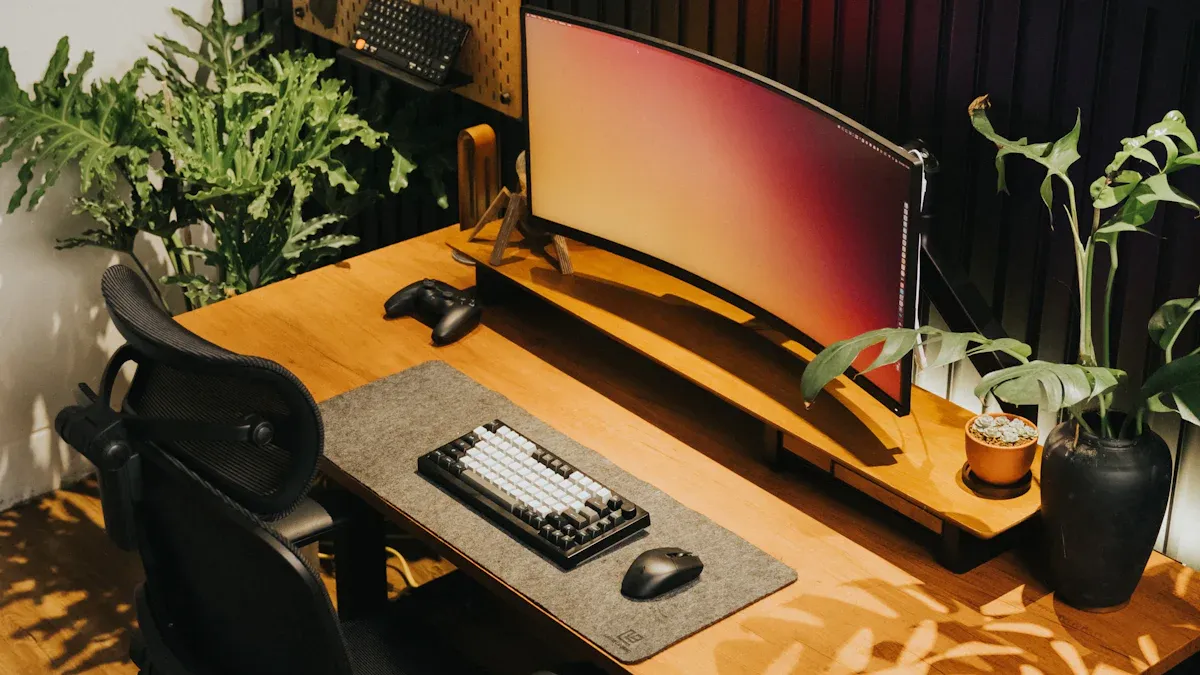
When I started with a single monitor mount, my desk felt instantly bigger. I could lift my monitor off the desk and adjust it to the perfect height. This setup works great if you have a small workspace or just need one screen for daily tasks. I like how easy it is to position your monitors for the best view. I can tilt, swivel, or rotate my monitor with just a gentle push.
A single monitor mount is perfect for students, writers, or anyone who wants a clean, simple desk. I always recommend using monitor arms with built-in cable management. This keeps cords out of sight and makes the whole layout look tidy. If you want to boost productivity without clutter, this is a solid choice.
Tips:
Place your monitor at eye level to avoid neck strain.
Use cable clips or sleeves to keep wires neat.
Leave space under the monitor for accessories or decor.
Switching to a dual monitor setup changed how I work. I can keep my email open on one screen and my main project on the other. This layout helps me enhance multitasking and stay organized. The best dual monitor setup uses monitor arms that let me position your monitors exactly where I need them. I can tilt, swivel, and adjust the height for comfort.
Here’s what I noticed with a dual monitor setup:
I free up desk space by lifting both monitors.
I can align the screens for a seamless view.
I keep cables tucked behind the arms for a clean look.
A thoughtful dual monitor desk setup layout supports better posture and reduces neck and shoulder strain. I feel less tired at the end of the day and can focus longer.
Ideal for:
Office workers, gamers, and students who juggle multiple tasks.
Anyone who wants to boost productivity and keep their desk organized.
The ultimate dual monitor desk setup takes things to the next level. I use advanced monitor arms that allow dynamic adjustments for both sitting and standing. This setup gives me total control over my workspace. I can set both monitors at parallel height and eye level, which helps prevent neck and eye strain.
Here’s what sets the ultimate dual monitor desk setup apart:
I use ergonomic accessories like a keyboard tray and wrist rest.
I designate a main monitor and angle my mouse toward it to reduce repetitive stress.
I keep both monitors at the same height for a balanced look.
With this setup, I can run video calls on one screen and work on the other. I never have to switch windows, so I stay focused. The best dual monitor setup always includes cable management features to keep everything tidy.
Why I love it:
I double my desktop space and reduce clutter.
I can multitask with ease.
My workflow feels smooth and efficient.
Vertical stacking is one of my favorite ways to save desk space. I stack two monitors, one above the other, using sturdy monitor arms. This setup is perfect for coding, financial trading, or real-time monitoring. I can see more data at once without turning my head side to side.
Here’s a quick look at the pros and cons:
Setup Type | Typical Use Cases | Advantages | Challenges / Disadvantages |
|---|---|---|---|
Stacked Vertical Monitors | Financial trading, real-time monitoring | Saves horizontal desk space; continuous data display | Needs special mounts; potential neck strain if not ergonomic |
I always make sure to position your monitors so the top is just below eye level. Adjustable arms help me find the right height and tilt. I follow the 20-20-20 rule to reduce eye strain: every 20 minutes, I look at something 20 feet away for 20 seconds.
Tips:
Use blue light filters for long sessions.
Choose mounts that support both vertical and horizontal layouts.
Keep cables organized with clips or sleeves.
Wall-mounted monitors give my desk a modern, open feel. I attach my monitors directly to the wall, freeing up the entire desk surface. This setup works well in small rooms or shared spaces. I can position your monitors at the perfect height and angle for comfort.
I like wall mounts because they keep my workspace flexible. I can move my chair or accessories without bumping into monitor stands. The best dual monitor setup with wall mounts uses adjustable arms for easy repositioning.
Best for:
Minimalist setups.
Home offices where floor and desk space are limited.
Gamers who want a clean, immersive environment.
Note:
Always check that your wall can support the weight of your monitors. Use cable covers to hide wires along the wall for a neat look.
Floating shelves and brackets offer a creative way to organize my desk. I use them to hold small devices, soundbars, or even lightweight monitors. They are easy to install and move, which is great if you rent or like to change your layout often.
Here’s how floating shelves compare to traditional monitor mounts:
Feature/Aspect | Floating Shelves | Traditional Monitor/Wall Mounts |
|---|---|---|
Installation | No drilling required; easy to relocate | Requires drilling; more permanent installation |
Ideal for | Small devices, soundbars, gaming consoles | Heavy devices like large TVs and monitors |
Space-saving | Saves floor space; organizes accessories | Frees up desk and floor space by elevating devices |
Flexibility | Easy to move and reposition | Offers tilt, swivel, rotate, height adjustments |
Support strength | Less suited for heavy devices | Strong and secure support for heavy equipment |
Aesthetic | Sleek, modern, clutter-free look | Clean, minimalist, and professional appearance |
Best use cases | Renters, small spaces, no wall damage allowed | Dedicated setups, ergonomic positioning, multi-monitor configurations |
Cable management | Limited | Often integrated for tidy setups |
I use floating shelves for accessories and light tech, but I rely on monitor arms for heavier monitors. This keeps my desk organized and stylish.
I call this my productivity powerhouse setup. I combine a dual monitor setup with an ultra-wide monitor for maximum screen space. This layout lets me keep reference material on one screen, work on another, and use the ultra-wide for timelines or editing.
Here’s how I set up my productivity powerhouse:
I use monitor arms to position your monitors at eye level.
I keep my ultra-wide in the center and dual monitors on the sides.
I use cable management trays to keep everything neat.
This setup is perfect for content creators, designers, and anyone who needs to boost productivity. I can run multiple apps, edit videos, and join meetings without missing a beat. The best dual monitor setup always includes ergonomic accessories for comfort.
Why it works:
I maximize my desk space.
I can switch between tasks quickly.
My workflow feels smooth and organized.
Sometimes, I like to get creative with DIY and custom monitor mount solutions. I’ve built stands from PVC pipes, metal rods, and even wooden crates. These setups let me customize my desk to fit my exact needs.
Some of my favorite DIY ideas:
PVC pipe stands for a budget-friendly option.
Metal risers for a sturdy, industrial look.
Wooden crates stacked for extra storage and height.
Wall-mounted shelves for saving desk space.
Adjustable arms made from repurposed furniture parts.
When I build my own mounts, I always focus on safety and ergonomics. I make sure the base is wide and stable, sand any sharp edges, and test the setup before adding my monitor. I also use cable clips and sleeves to keep cords tidy.
Tip: Always position your monitors at eye level and about an arm’s length away. This helps prevent neck and eye strain.
DIY setups are perfect if you want a unique look or have special workspace needs. Just remember to check the weight limits and stability before using your new mount.
When I want to choose the right monitors for my setup, I always look at how much I can move and adjust the mount. My desk comes in different shapes and sizes, so I need a mount that fits well. Some mounts have arms that reach 20–30 inches forward, which helps me pull my monitor closer or push it back. I check if the mount lets me tilt, swivel, or rotate the monitor. This makes my setup more ergonomic and comfortable. If I use a sit-to-stand desk, I pick a mount that moves smoothly with height changes. I also make sure the mount can handle the weight of my monitor, especially if I add accessories like lights or webcams.
Tip: Always leave a little extra weight capacity on the mount. This keeps the setup stable and easy to adjust.
I learned that not every monitor fits every mount. VESA compatibility is key. This means my monitor has a standard hole pattern on the back, so it attaches securely to the mount. I always check the VESA pattern before I buy anything. Some monitors, like large TVs or Apple screens, need special adapter plates. Matching the VESA pattern keeps my setup safe and stable. It also lets me switch mounts or change my setup without trouble. When I choose the right monitors, I make sure they work with my mount for a smooth, ergonomic setup.
A tidy desk helps me focus. I look for mounts with built-in cable management features. Some have baskets or clips that hide and organize cables. Others have pass-through holes for neat routing. I like mounts that are easy to install and let me rearrange cables without a hassle. If I use a sit-to-stand desk, I pick a mount with cable management that moves with the desk. This keeps my setup clean and prevents cables from getting tangled.
My favorite cable management features:
Cable baskets for hiding wires
Fold-down designs for easy access
Durable materials for long-term use
Ergonomic placement is a must for any setup. I always position my monitor at eye level and about an arm’s length away. This helps me avoid neck and eye strain. I check that my mount’s height range matches my desk and monitor size. For L-shaped desks, I use longer arms to get the right angle. I avoid mounting on glass or weak surfaces unless I use reinforcement plates. A stable, ergonomic setup keeps me comfortable all day. When I look for recommended monitors for a dual monitor setup, I make sure they fit my desk and support good posture.
Note: A good ergonomic setup can boost productivity and help me feel better after long hours at my desk. I always test my setup and make small changes until it feels just right.
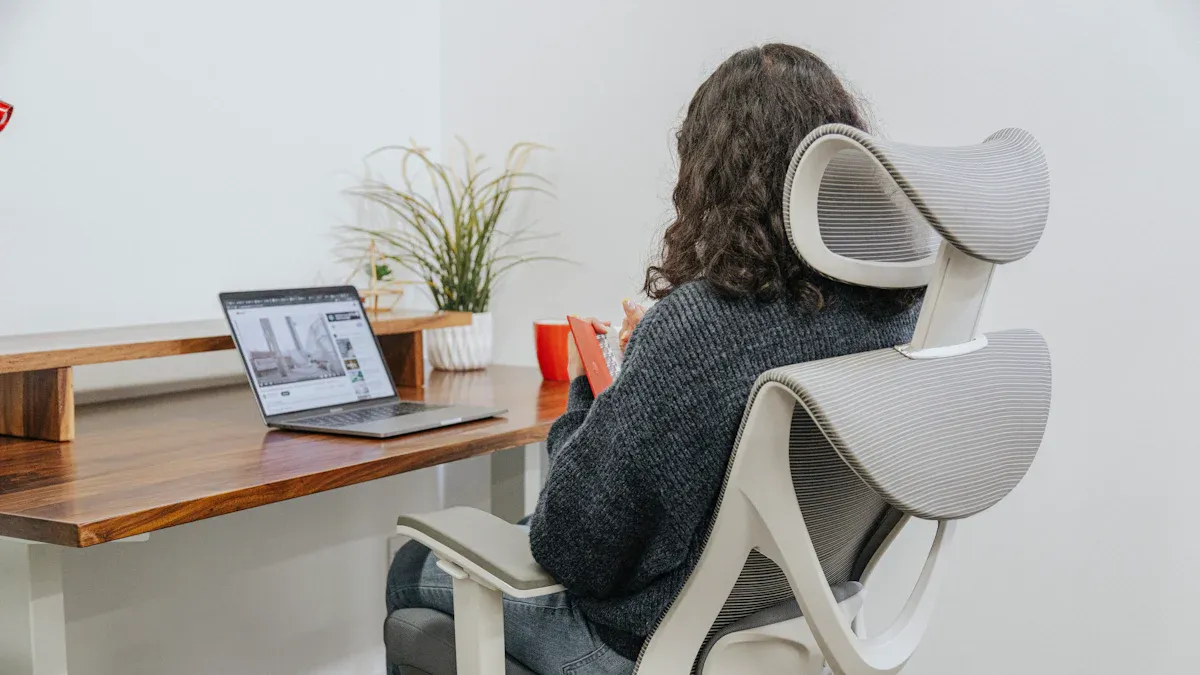
A messy desk can ruin my focus. I always look for cable management systems that work with my monitor mount and desk setup. The NeatUp 2.0 cable management system stands out for sit/stand desks. It moves with the desk, so my cables never get tangled or stretched. I like that it has a built-in power strip and Ethernet ports, which keeps everything close and organized. For even more control, I add under-desk cable trays or sleeves. These tools help me keep my workspace neat and make my setup look professional.
Tip: I always match my cable management tools to my monitor mount and desk style for a seamless look.
I love adding accessories to my monitor setup. Monitor shelves give me extra storage under the screen, so I can tuck away my laptop or phone. Modular attachments let me keep pens, headphones, and even a small whiteboard within reach. This keeps my desk clear and helps me stay organized. When I use a monitor arm with built-in cable management, I avoid clutter and boost my productivity. I can also add task lighting or a phone dock to my setup, making my workspace more flexible.
My favorite accessories:
Monitor shelves for extra storage
Modular docks for devices and pens
Clip-on whiteboards for quick notes
Good lighting makes a huge difference in my workspace. I use a monitor light bar that clips onto my screen. It lights up my desk without taking up space or causing glare. The best light bars have adjustable brightness and color temperature, so I can set the mood for work or reading. Some even adjust automatically to the room’s light. I look for models with anti-glare and blue light protection to keep my eyes comfortable during long sessions. This simple upgrade helps me avoid eye strain and keeps my setup cozy.
A tidy desk helps me focus and boosts my productivity. I use a standing desk that works well with my monitor arm and cable management system. I store my keyboard in a clamp-on drawer under the desk to free up space. I keep only what I need on the surface and use trays or bins for small items. I always check that my monitor mount supports my screen size and weight, so my setup stays safe and stable. With these habits, my workspace feels open and ready for anything.
I’ve seen how creative monitor mount setups can totally change my workspace. Adjustable mounts help me sit comfortably, reduce neck and eye strain, and keep my desk neat. Multi-monitor setups boost my productivity by letting me multitask with ease.
Ergonomic comfort
More desk space
Cleaner look
Flexible options for any job or hobby
Why not try a new setup? Share your favorite ideas or ask questions below—I’d love to hear what works for you!
I always check the back of my monitor for VESA mounting holes. Most monitors have a square or rectangular pattern. I look for the VESA size in the manual or on the manufacturer’s website.
Yes, I’ve done this before. I use a dual monitor arm that supports different weights and sizes. I make sure both monitors have VESA mounts and adjust the arms for a level look.
Usually, I only need a screwdriver and the hardware that comes with the mount. Sometimes, I use a drill for wall mounts. I always read the instructions first to avoid mistakes.
I’ve never had a problem when I follow the instructions. For desks, I use a clamp mount to avoid drilling. For walls, I use anchors and check the wall type before installing.
I use cable clips, sleeves, or the built-in cable management on my monitor arm. Sometimes, I run cables behind the desk or along the wall. This keeps my setup neat and organized.


